Showing posts with label Session Resources. Show all posts

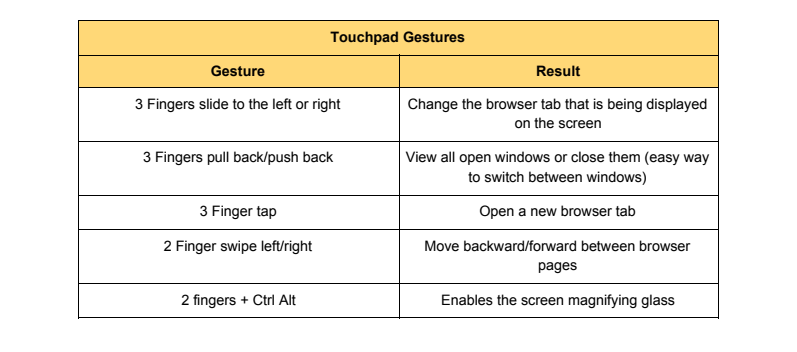
Chromebook Shortcuts


Chromebook Crash Course: What You NEED 
This past December I spent part of my Christmas break participating in the Ditch that Textbook Summit put on by Matt Miller. I have to say that it was some of the most useful and thought provoking PD I have taken online.
So much so that it inspired me to try to create some of my own online PD this year. (Stay Tuned)

I had a difficult time deciding which one I should focus on for the engage blog but opted to include something you can put into immediate practice!   I decided to share some of what I learned from Matt Miller's Chromebook Crash Course. Below find a copy of his chart of useful shortcuts for Chromebooks.

For you visual learners I have a link to a google doc that has a kind teacher (Mrs. Dale) created.  It includes graphics you can print out for your students or yourself. Page 2 and Page 3.

Digital Breakouts


If we have talked lately you know my new favourite thing is digital breakouts. I discovered these at the conference and have been busy creating and doing them with students.

A digital breakout is much like the breakout ed boxes except it requires nothing but a device and access to the web. Teachers or students are given a timeline (usually 10-45 mins) to search for clues in the form of hidden hyperlinks or images and text all embedded in a google site. The clues lead to puzzles that need to be solved in order to "unlock" questions in a google form. But, watch out sometimes the clues are just red herrings that lead you astray.


These are great to allow students to apply the learning from any subject area to a new situation either as review or consolidation of what they have discovered. It also allows students to collaborate, create and demonstrate GRIT.

Much like break out boxes there are 4 kinds of locks.

COLOUR LOCK


DIGIT LOCK


I would love to co-create one with you if you are interested or just come in and show you how they work. Here are a few to try as well as some links to resources that have been shared with me.

Thank you Jen @virtualGiff for your amazing session.


https://www.breakoutedu.com/digital/

BREAKOUT PLANNING SHEET WITH RESOURCES


Awesome Assessment Tool (Everything in One Location)


This week I had the opportunity to attend the Bring it Together conference in Niagara Falls. One of the many amazing things I get to do this year in my new role. I learned so much that I can't wait to share with you.


My first session was with Heidi Mannhardt. @HiD_Mnhrt She taught us how to use one Google form, sheet and individual student docs to track all assessments, all school year long. If you are interested she has uploaded a step by step on youtube. https://www.youtube.com/watch?v=wOURN6lTBqg


I can come in and talk you through it if you like. Or we can set up a workshop if enough teachers want time to try it it. Gotta say it is something I am definitely gonna incorporate into my classroom as it makes feedback real, almost instant, authentic and for me having it all in one location would help immensely. Karen Walker@mrs7walker  was also there and says she might give it a go in her practice as well. I will check in after parent interviews and see how it is going.
EVERYTHING IS AWESOME!

Sketchnoting for Teaching and Learning

Sketchnoting is a great alternative to traditional note-taking methods.  There are lots of great iPad apps that work well for sketchnoting including Paper by fiftythree, Notability, Explain Everything, Tayasui Sketches or even just the iPad native Notes app.

An example of a Sketchnote created in the Paper by fiftythree app


The following resources may be helpful in getting started with Sketchnoting:

Sketchnoting for Teaching and Learning (Free on the iBooks Store)


Karen Bosch has an extensive collection of Sketchnote resources listed here. 

The Keynote from the session is here in PDF format.

Books (available at major bookstores):
The Sketchnote Handbook by Mike Rohde
The Sketchnote Workbook by Mike Rohde
The Doodle Revolution by Sunni Brown
Blah Blah Blah by Dan Roam

Skillshare courses (available for purchase through the Skillshare app on iOS):
Visual Thinking by Catherine Madden
The Art of Doodling by Cathy Wu


iPad in the Language Classroom


One of the apps you can use to support Language in the classroom is Pic Collage Kids.  It can do so much more than just creating posters! It is a photo editor and collage maker with a variety of fonts, stickers, gifs and backgrounds. Students can choose photos from their camera roll or safely search for images online.  Check out what you can create in the Language classroom:


Use Popplet (or Popplet Lite) as a graphic organizer or to have students identify character traits.  We previously wrote about Popplet here.


Emojis are a great way to help students communicate or summarize text.  We wrote about emoji stories here a few months ago.    A similar idea is to use Book Snaps to engage students in annotating text.  Book Snaps were the Treat of the Week a few weeks back.  

Use Paper by fiftythree to create Blackout Poetry without having to destroy a book.


Finally, check out Adobe Spark Post to publish student-written Haiku or other poetry. Surprise! We just wrote about this app, too!  We wrote about the other Spark apps a few months ago as well, and once you've used one of the suite, the others are easy to pick up.


Additional Resources:

Epic Books is an app that has hundreds of books at levels from pre-K to Grade 6.  Some of the titles have a "read to me" feature so students can hear the book being read.  The best thing about Epic Books is that these are real, high-quality children's books.  Students will recognize familiar titles like Scaredy Squirrel and Big Nate.  They have also recently added high-quality educational videos. Epic Books is free for educators!


Newsela is a site that allows teachers to assign articles to students based on reading level.  Newsela is available both in your browser (even on iPad) or with an iPad app. As with many sites, Newsela offers both a free version and a paid version that includes more features.


The Smithsonian has a fantastic collection of non-fiction articles on a wide variety of topics.  The website is divided into TweenTribune Junior (K-4), TweenTribune (Grade 5-6 & Grade 7-8), and Teen Tribune (Grade 9-12).  The articles are searchable by Lexile level, and many are written at multiple levels to help you differentiate instruction.  The site is a free resource, and includes a teacher section with lesson plans.


Common Lit is created and maintained by teachers.  It has articles sorted by Theme, and by using their text sets you could have students in the class reading different articles to tackle the same topic.  Articles are written at levels ranging from Grade 5-12.  This is a free resource.


Teaching Kids News is created and maintained by Ontario educators and offers daily, kid friendly news. Articles are written in kid friendly language and offer information for Grades 2 to 8. The site makes connections to the Ontario Curriculum and offers thought provoking questions to get students thinking critically about what they have just read. This is a free resource. 


OWL Connected is a great resource for kid friendly information. It offers a variety of search options (hot topics, pictures, interviews, etc) including Canadian Content. The articles are updated daily and you can sign up for a daily newsletter. One of the neat features of this website is the OWL Connected Reporters. These reporters are kids interviewing experts in the field! This is a free resource. 


DOGONews offers current events articles for K-8 classrooms. All articles include text, pictures, a video and a vocabulary bank at the end. Most of the articles offer a text-to-speech option where the students can have the article read to them. This website provides the option to create an account and will sync with your Google Classroom. You can assign articles to students in your classroom. This is a free resource. 


Finally, Flipboard is an app that we love for curating content for students.  


iPad in the Visual Arts Classroom


Cathy Hunt is an expert on integrating iPad with physical materials in her art classroom.  She regularly posts amazing ideas on her blog, iPad Art Room.


She also has several multitouch books available on the iBooks Store:

iPad Art by Cathy Hunt


More iPad Art by Cathy Hunt


If you attended our iPad in the Visual Arts classroom and are looking for the apps we used, here they are!


Coding in the K-8 Classroom Resources

Computer Science Education week is coming up from December 5-11!  Even if you have never tried coding yourself, these resources will help you get started.

Coding Unplugged
You can teach the fundamentals of computer science whether you have computers in your classroom or not!  Check out these great Unplugged resources from CODE.org.

CODE.org also offers lots of great coding activities for Hour of Code.  Students can choose from their favourite characters and learn the fundamentals of coding with R2D2, Anna and Elsa, Moana, or in the world of Minecraft.  These activities can be done in any internet browser (including on iPad).


Coding with iPad

There are lots of great apps that you can use on iPad that make coding feel like a game.  Some can even be used with students who are not yet reading. We tried many different apps, and these were our favourites:

In Box Island kids learn about loops and conditionals through a fun and challenging game.  Box Island's Hour of Code is available for free.  In Box Island you can change the language to French if you like!


LightBot Hour of Code allows you to try LightBot for free.  Solve 20 Levels of puzzles using programming logic.  LightBot Hour of Code allows you to switch the language to French.


Cargo Bot is a challenging series of logic puzzles.  Even many adults are stumped by some of the puzzles in this game!  An interesting side note is that Cargo Bot was coded entirely on an iPad.


In Tynker students play fun puzzles to learn the basics and then create their own games using over 100 step-by-step coding tutorials.


Students as young as 4 can program their own interactive stories and games with Scratch Jr.  You can download free activity pages to help you get started from the Scratch Jr website. 


Swift Playgrounds uses the Swift programming language, and is a great bridge for students who want to graduate to more advanced coding.  The app requires a fair amount of reading, but as long as students are comfortable with the reading level of the app the programming is approachable in the Junior grades.  If you want more help getting started, check out the free book on the iBooks store.


Coding beyond iPad

Each LKDSB school has two Dash and Dot Wonder Packs available!  You can use Blockly and Path to help students develop their coding skills.  If you want to code Dash and Dot in French, check out the Blocklify and Blocklify 4 Kids apps!  Blocklify also had additional math functions for older students that you won't find in Blockly.  Are you looking for even more ideas for Dash and Dot?  Check out the Hour of Code resources on the Wonder Workshop site!  Want even more?  We wrote about Dash and Dot here a couple of weeks ago!  

OSMO offers its own app and set of physical blocks that allow younger students to manipulate physical objects to build their code.  


Creative Literacy: Evoking Mood with GarageBand, iMovie, and Paper by 53 (#BIT16)

These resources have been compiled to share with attendees of the Bring IT, Together 2016 conference session Creative Literacy: Evoking Mood with GarageBand, iMovie, and Paper by 53.  If you have any questions, reach out to us on Twitter: @Sharon_Drummond & @jen_gilpin

Examples


Apps


Resources


Learn more about how you can use Paper by fiftythree in your classroom.

Need to know more about how to use iMovie or GarageBand?  Check out these free starter guides!


K-3 Coding with Dash and Dot (#BIT16)

These resources have been compiled to share with attendees of the Bring IT, Together 2016 conference session K-3 Coding with Dash and Dot.  If you have any questions, reach out to us on Twitter: @Sharon_Drummond & @mrskorstanje  The Keynote from the session is available here.  The slides in PowerPoint are available here.

Ideas for the Classroom

This PDF , created by Brittany Korstanje, has examples showing how you can use each of the Wonder Workshop apps to address curriculum expectations with Dash and Dot.


Examples:

See Brittany's Kinnwood Kindergarten students from last year on the Dash & Dot show Holiday Special! Be sure to check out the other episodes for great ideas!


Wonder Workshop Apps:

Go on the App Store 


Path on the App Store 


Blockly on the App Store 

Wonder on the App Store 


Xylo on the App Store 


Additional Resources:

The Wonder Workshop website had lessons for educators.  Some are free and some require a paid subscription for access.


Coding and Robotics for K-5 with Dash and Dot on the iBooks Store (free!)


Now you can use Swift Playgrounds to control Dash!  You'll need the Swift Playgrounds app on your iPad with iOS10.  


You can read more about how to link Dash and Dot with Swift Playgrounds here.  The link also includes the Playbook you'll need to download to get started.


If you are looking for other ways to introduce coding into your classroom, check out these free books on the iBooks store!

From Clueless to Coding
Primary Coders